Schedule Your AI Tasks: Automated Reports on Your Terms
by Yubin Park, PhD, Co-Founder
You've explored your data with Falcon AI. You've created a data pull ticket that gives you exactly the insights you need. Now what if you could get that same report delivered automatically—daily, weekly, or monthly—to yourself or your team?
That's exactly what Scheduled Tasks does. Turn any AI-generated data pull into a recurring report that arrives when you need it, to whoever needs it.
Before You Begin: Create a Data Pull Ticket
Scheduled Tasks works best when you've already interacted with Falcon AI and created a data pull ticket. Here's how that works:
As you explore data with Falcon AI, you might want the full dataset in CSV format to review. Just ask: "Can you give me the full data?" or "Create a data pull ticket for this." The AI drafts the SQL query and creates a ticket to run it.
Data pull tickets are processed every 10 minutes, so you can quickly verify the data looks exactly how you want it. Once you're happy with the results and want that data on a regular basis, you're ready to schedule the task.
Top tip
Pro tip: Let AI do the heavy lifting. Instead of writing SQL yourself, chat with Falcon AI to build your query. Review the data pull results first, then schedule it when everything looks right.
Step 1: Navigate to Scheduled Tasks
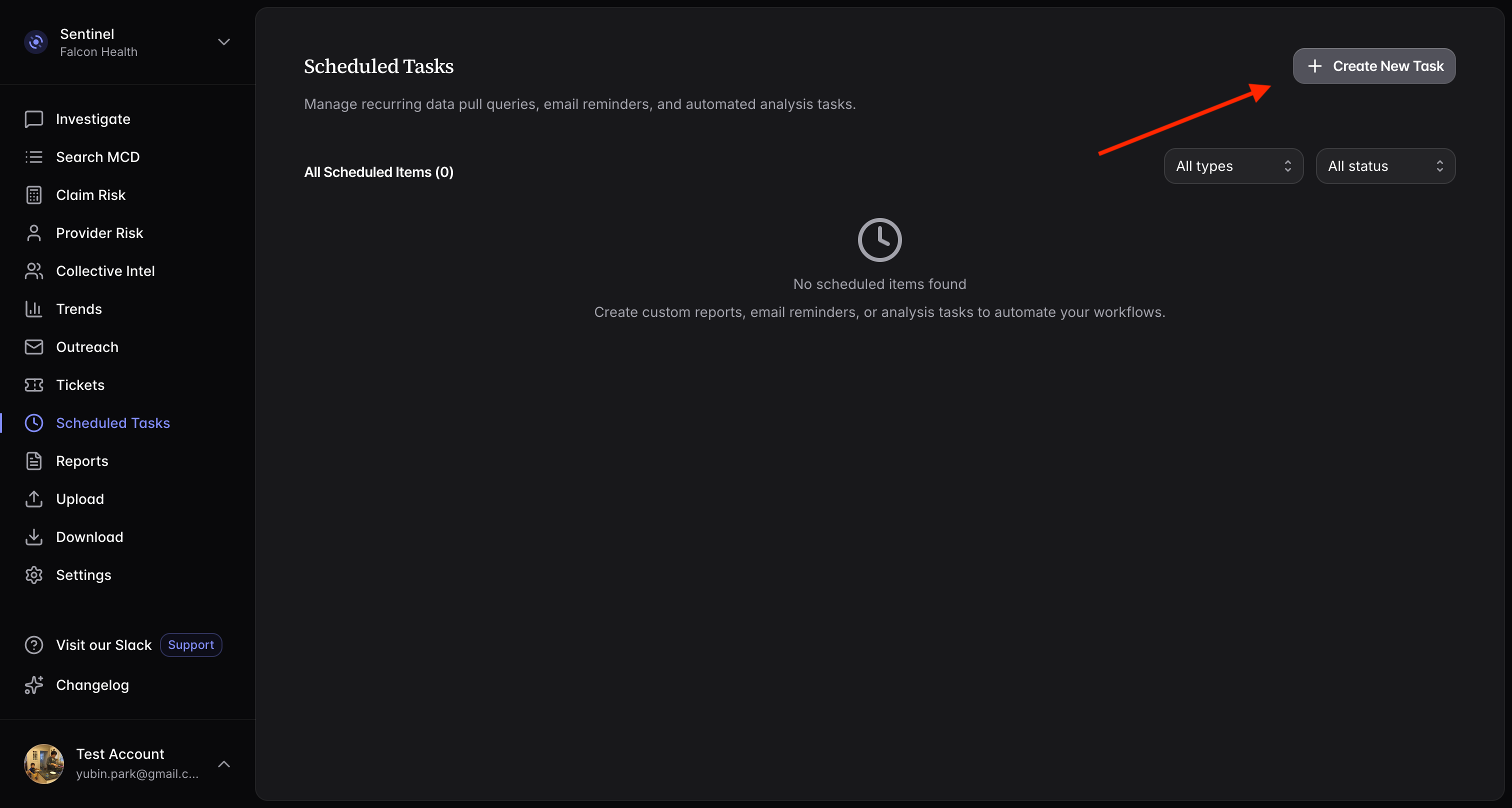
From your dashboard, click on Scheduled Tasks in the navigation menu. This is your command center for all recurring reports and automated workflows.
Step 2: Create a New Task
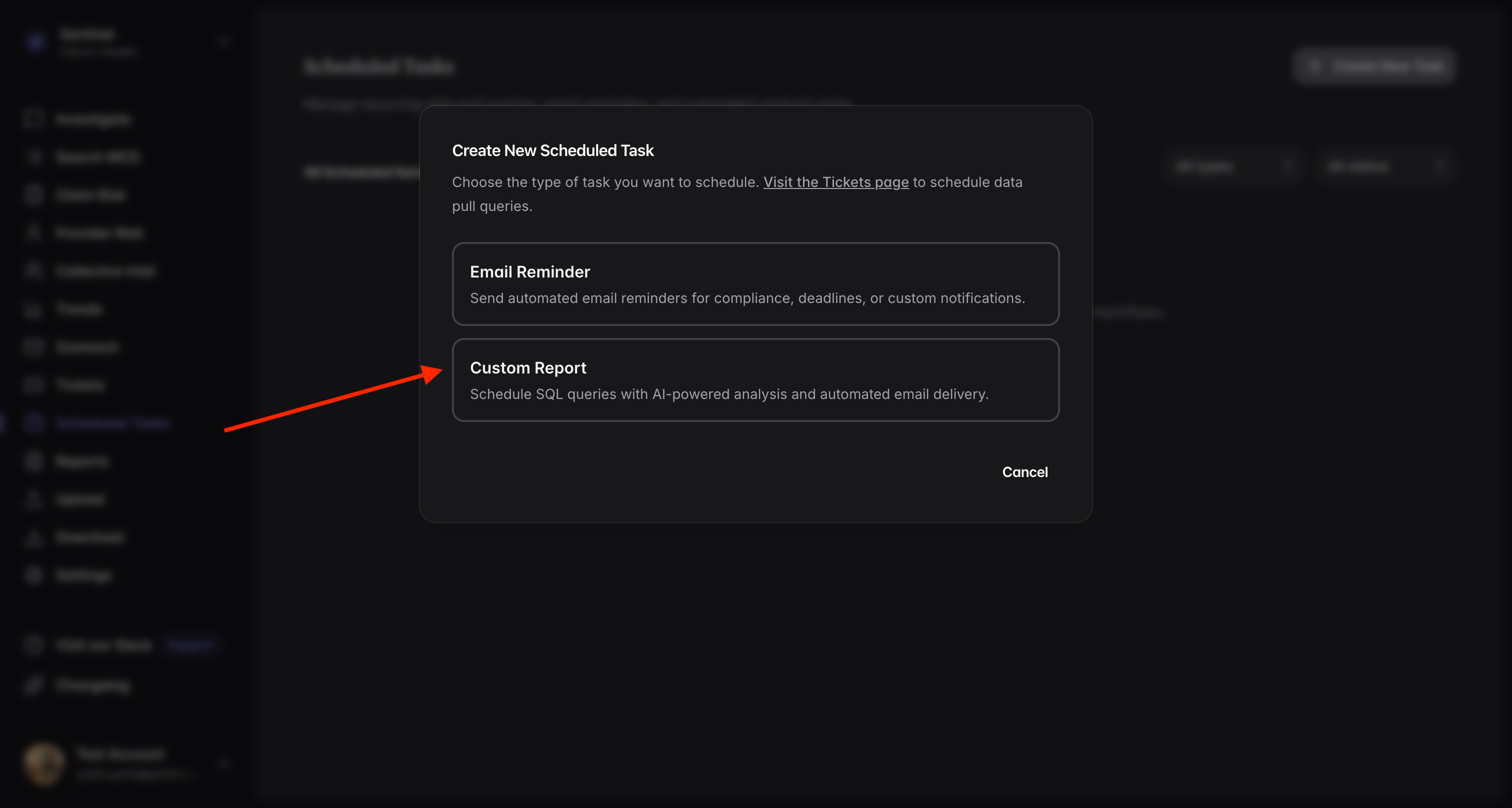
Click Create a Task and you'll see two task types. Select Custom Report to create a scheduled report based on your data pull ticket.
Step 3: Select Your Data Pull Ticket
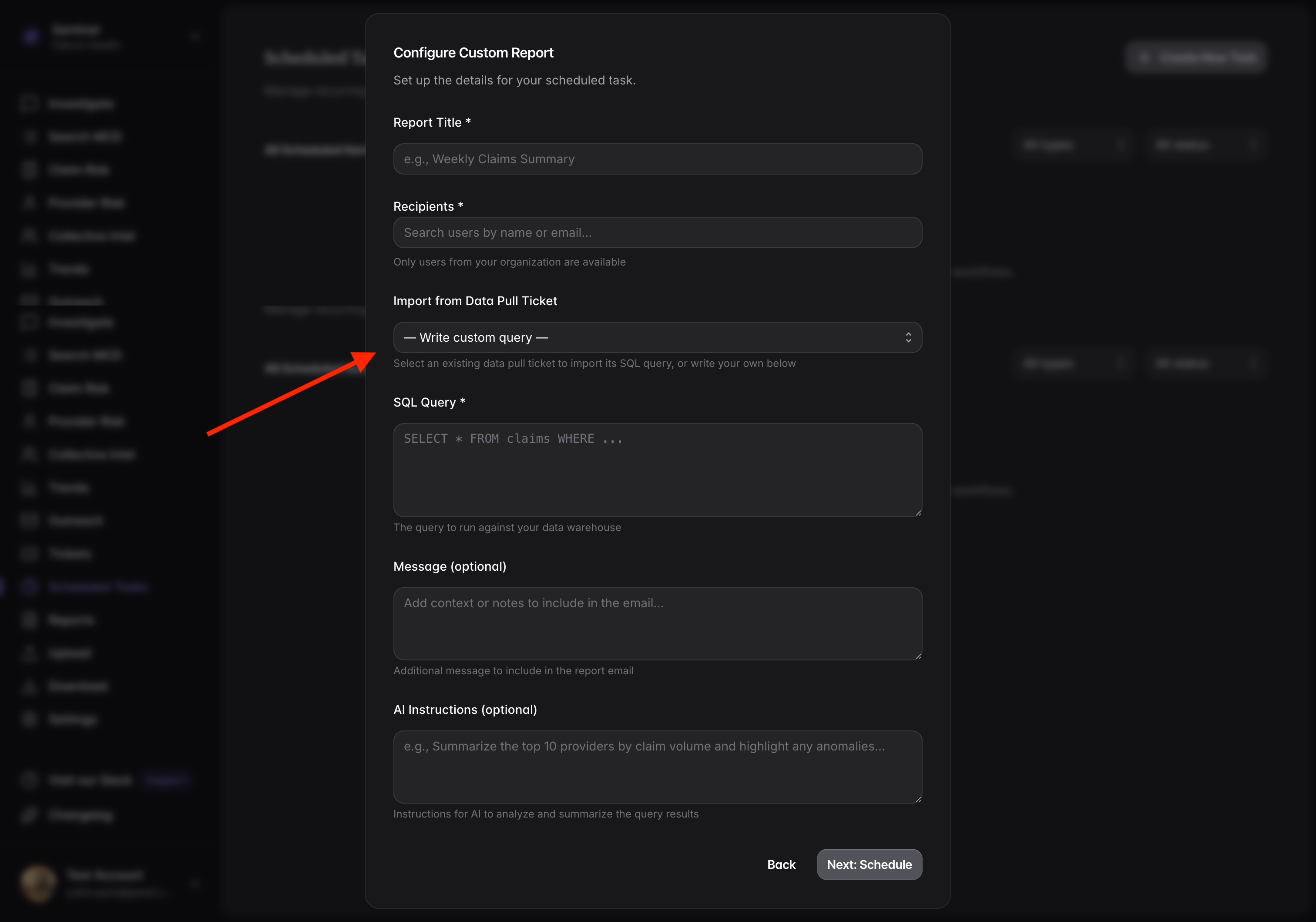
Here's where the magic happens. You'll see a list of your previously generated data pull tickets. Click on the one you want to schedule.
Don't have a data pull ticket yet? You can write the SQL query manually here too. But honestly, it's much easier to let AI handle that work. Go back to Sentinel, chat with the AI, and create a data pull ticket first. Once you've verified the data looks good, come back here to schedule it.
Step 4: Configure Your Report
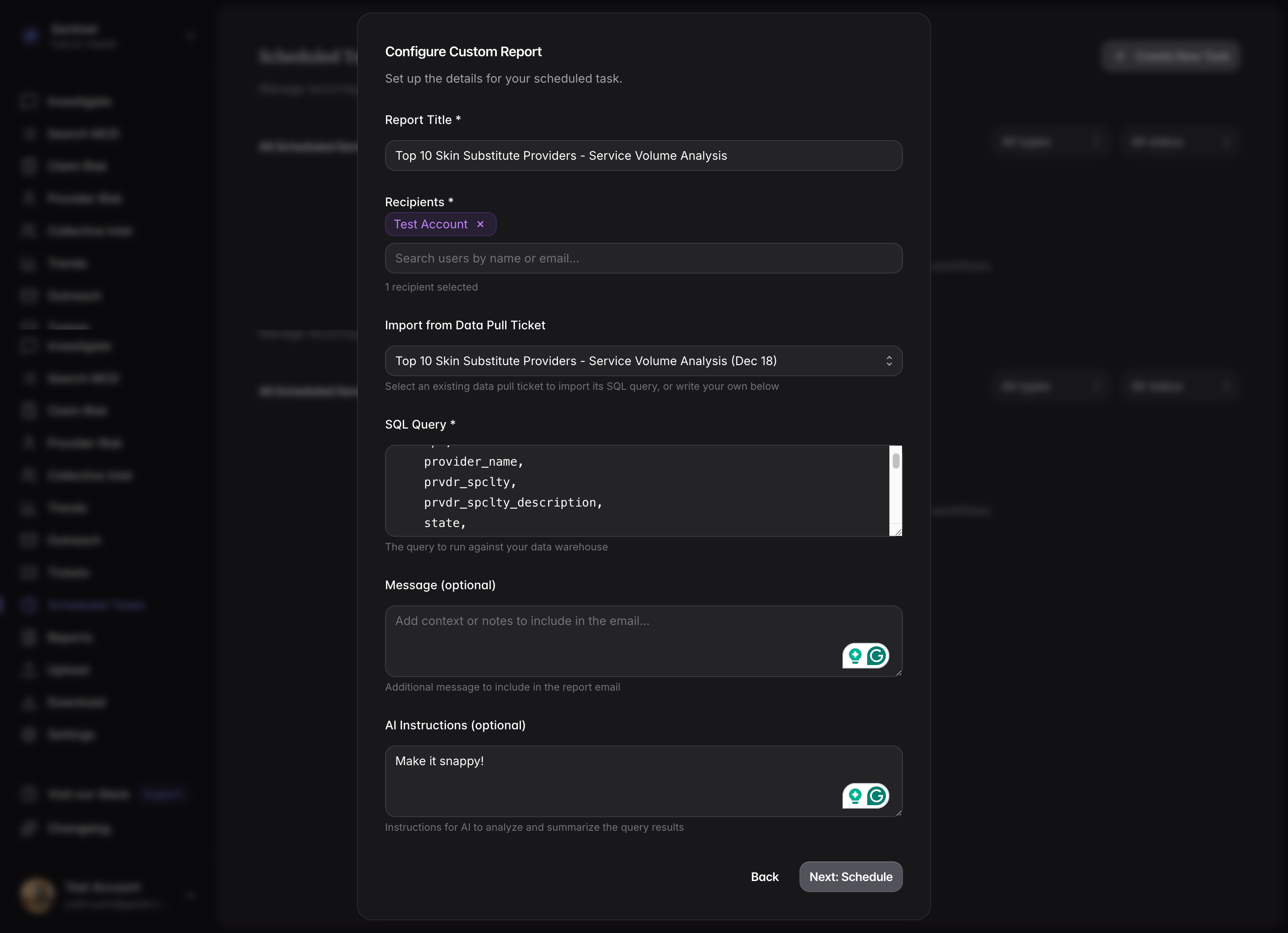
Once you select a data pull ticket, the SQL query automatically populates. Now fill out the remaining fields:
- Report name: Give it a clear, descriptive title
- Recipients: Add email addresses for team members who should receive the report
- Description: Optional notes about what this report contains
Step 5: Set Your Schedule
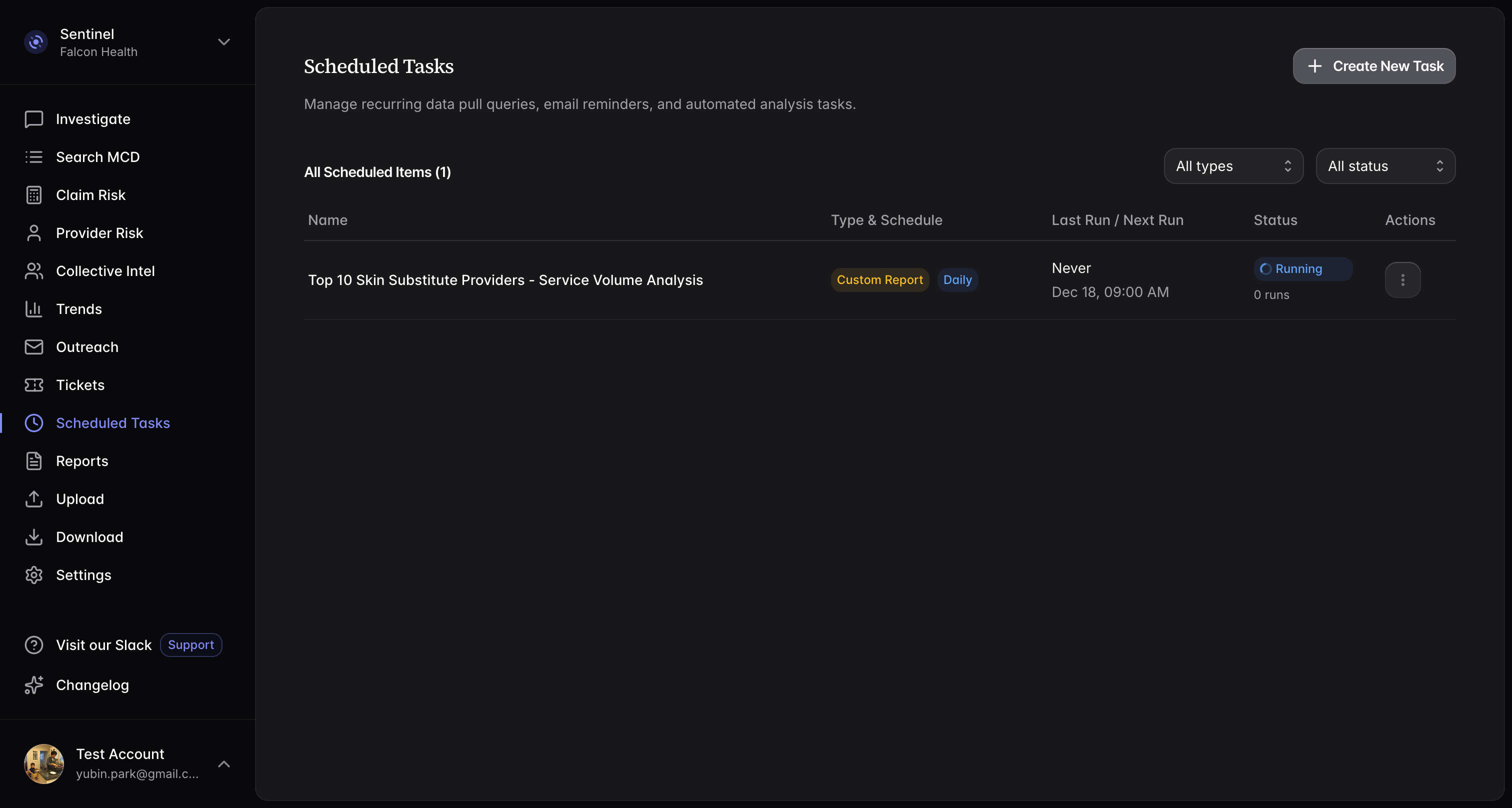
Choose when and how often you want your report to run:
- Daily: Get fresh data every day
- Weekly: Perfect for weekly team updates
- Monthly: Ideal for monthly performance reviews
Set the specific time and day that works best for your workflow. Your boss wants a Monday morning briefing? Your team needs end-of-week summaries? Set it and forget it.
Step 6: Review Your Results
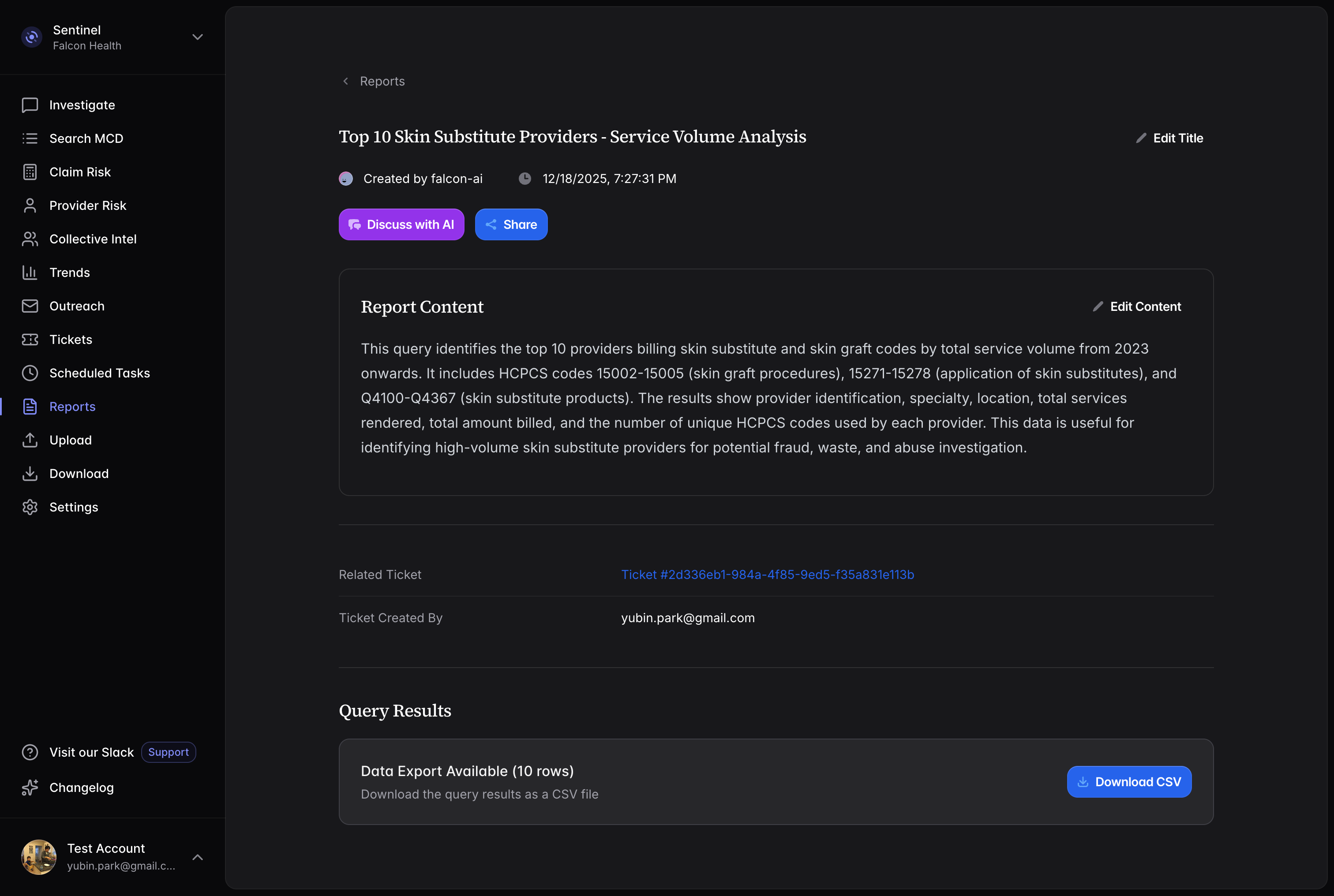
When your scheduled task runs, you'll receive the results complete with visualizations and data ready to download. Charts make it easy to spot trends at a glance, and the full dataset is just one click away when you need to dig deeper.
That's it! You've just turned a one-time data exploration into an automated workflow. No more remembering to pull reports manually. No more sending the same request to your data team every week. The insights you need, delivered when you need them, to whoever needs them.
Questions about setting up your scheduled tasks? Our support team is ready to help you automate your analytics workflow.